Templates
Save a signed-in worksheet as a template when you want new sheets to start with your title block, unit system, page theme, and standard headings. The old job's numbers stay behind.
Save any signed-in worksheet as one from the Save As dialog. It appears under Templates in the Sheets sidebar.
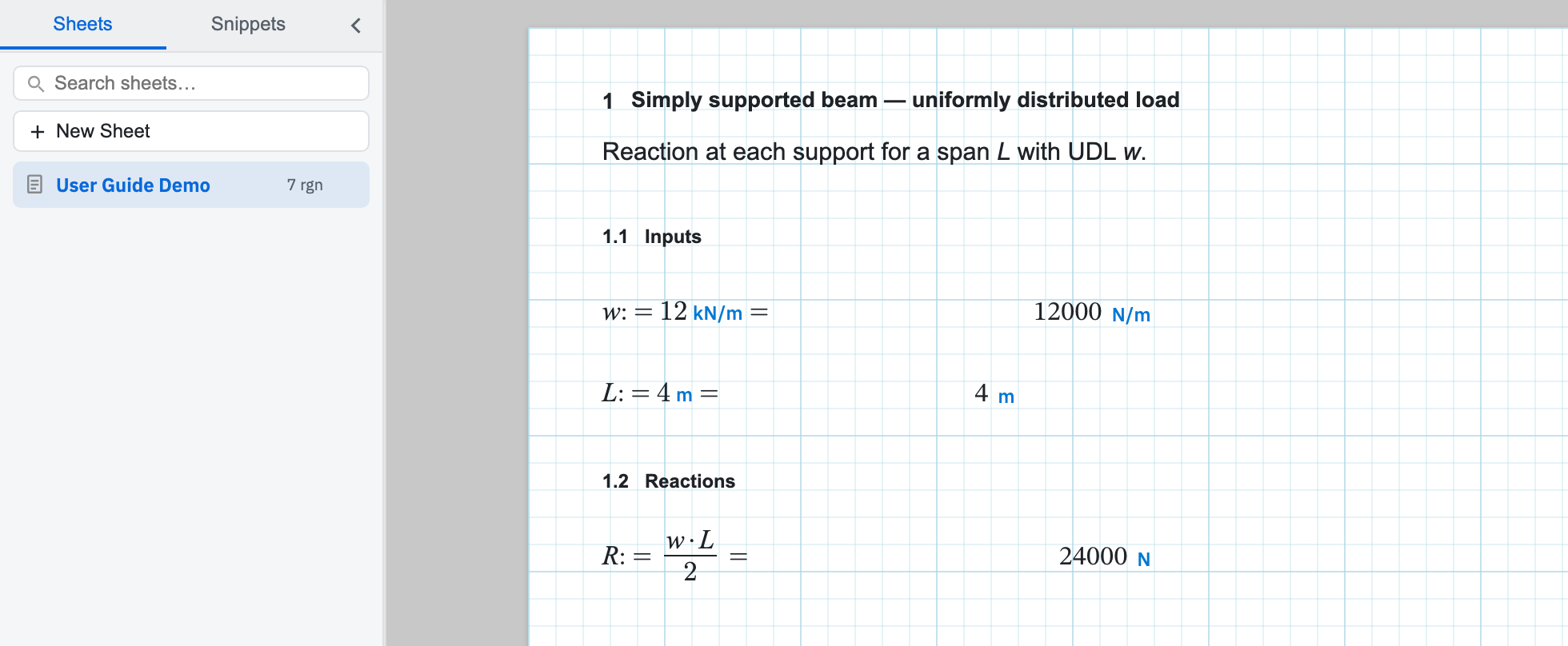
Save a sheet as a template
- Open the sheet you want new work to start from — title block, unit system, page theme, standard headings, common lists.
- Choose Save As on Quick Access or Home → File.
- Enter a name, then choose Save as Template rather than the ordinary save.
- The template appears in the sidebar Templates list and you stay on the sheet you were editing.
What you save is a starting copy. Regions, paper theme, unit system, styles, headers and footers, and format lock all come across. Editing a sheet you started from the template changes nothing until you save that sheet as a template again. Templates need an account. The save is refused for guests.
Start new sheets from it
Choose New, then set Start From Template to the one you want, or leave it on Blank Worksheet. Star a template in the sidebar to make it the preselected choice for every new sheet. The star tooltip reads Use as preferred when creating new sheets. Clicking it again clears the preference. The starred choice is remembered per account in the browser you set it in, so set it again on a second machine. Before you have saved any template, the sidebar block reads: No templates — use Save As → Save as Template.
Next, export a .leaf if you need the starter file on disk.