Find and replace variables
You called it V and it should have been V_applied.
Open Find/Replace in the Variables group of the Math Format
tab. It renames a variable everywhere it
is used on this worksheet: the assignment and every reference to it. Then it
re-evaluates.
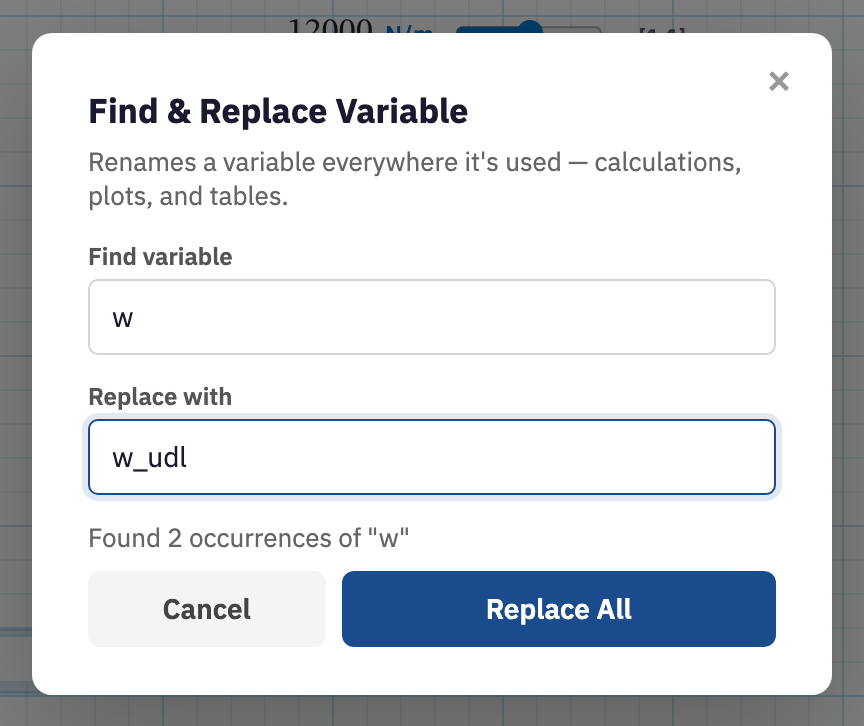
Rename a variable
- Open the Math Format tab and choose Find/Replace. The dialog is titled Find & Replace Variable.
- Type the current name in Find variable, or pick it from the datalist of names already on the sheet. The line beneath reports how many occurrences match, so you can check the scope before committing.
- Type the new name in Replace with. It must start with a letter or underscore and continue with letters, digits, or underscores.
V_appliedandsigma_maxare both fine. - Choose Replace All. Calculeaf rewrites every matching region, re-evaluates the sheet, and reports how many regions changed. Cancel, the ×, or Escape closes without touching anything.
Matching is on whole identifiers, so renaming V leaves
V_1 and Vmax alone. If the new name is already in
use, Calculeaf warns you and the two merge, with later assignments still
winning in evaluation order.
What it will not find
This searches maths, not prose. Words in notes, headings, plot titles, list
labels, and summary headers are untouched, because a variable named
V and the letter V in a sentence are different things. For those,
use find and replace text on the Text
tab, which is the mirror image of this dialog.
It does reach beyond the equations themselves, though. Sliders, list variable columns, sweep inputs, and plot series that reference the old name are renamed along with the math regions, so nothing is left pointing at a name that no longer exists.
Next, find and replace text on the Text tab for words in notes and headings.