Sections sidebar
Mark a text region as a section header. A bookmark button then appears on the right. Click it to jump around the sheet.
The list only includes text regions you have marked. An ordinary heading, however large and bold, never appears here.
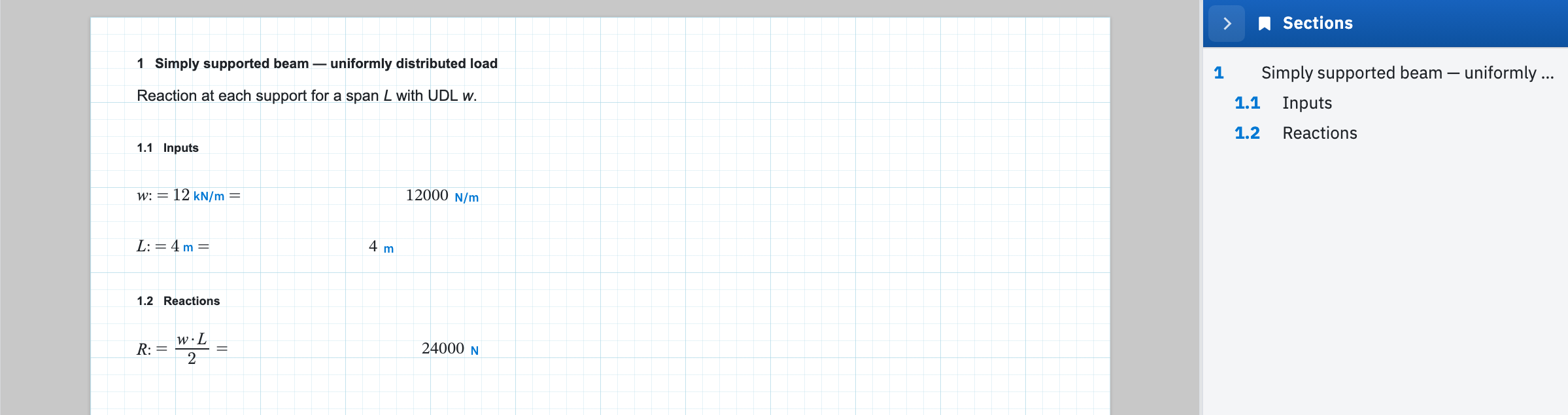
Mark a text region as a header
- Select the text region holding the heading, then open the Text ribbon tab.
- In the Sections group, choose Section.
- Set Level to 1, 2, or 3. Levels 2 and 3 nest under the previous higher level, numbering as 1.1 and 1.1.1.
- Leave Number blank to let Calculeaf number the sheet for you, or type an override when a document has to match an existing numbering scheme.
Choosing Section again on a marked header clears the mark. The region survives as ordinary text. Numbering, levels, and how headers interact with calc numbers are covered in full under sections and numbering.
Open the panel
As soon as the sheet has one marked header, a bookmark button appears on the right edge of the window, above the AI button when that is showing. Click it to slide out Sections, then click any row to bring that heading into view. Close the panel with the chevron in its header, or drag its left border if the titles are being clipped. Only one right-hand panel is docked at a time, so opening Sections closes the AI assistant.
On a sheet with no section marks the button stays hidden, which keeps a scratch pad free of chrome it does not need.
The panel or a section table?
The panel is for jumping around while you edit, and it exists only on screen. When the reader of the finished document needs the same thing, use Table in the Sections group on the Text tab. It inserts a section table on the page: a clickable list of every header that still works in the exported PDF. Put one near the top of a long calculation as a contents block.
With the workspace mapped, Regions covers the block types themselves: inserting and resizing them, the clipboard, and the order they evaluate in.