Units
Type the unit after the number, the way you would say it. Calculeaf reads
that as multiplication by the unit. 12 kN/m is twelve
kilonewtons per metre, and that dimension travels through every calculation
below. It is not a bare 12 with a label stuck on. That is what stops a sheet
adding a length to a force.
Attach a unit
A space between the number and the unit is the usual form, though it is not
required. 5kN parses the same as 5 kN. Build
compound units with /, *, and ^:
w := 12 kN/m =
p := 20 N/mm^2 =
A := 150 mm^2 =
A unit can also follow a closing parenthesis, as in
(w * L / 2) kN. That is rarely what you want. If
w and L already carry units, the product already
has a dimension, and multiplying by kN again gives you kN squared per metre.
Reach for
to() instead when the
intention was to state the answer in kN.
Pick a unit from the ribbon
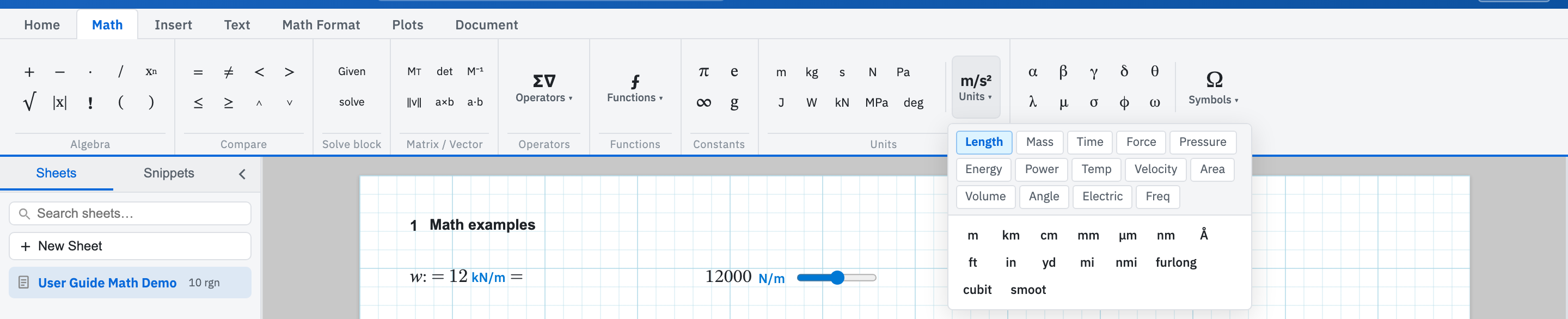
Clicking beats typing when you are unsure of the exact token. On the Math tab, the Units group offers quick buttons for m, kg, s, N, Pa, J, W, kN, MPa, and deg. Units ▾ opens the full set by category: Length, Mass, Time, Force, Pressure, Energy, Power, Temp, Velocity, Area, Volume, Angle, Electric, and Freq. Either way the token drops into the math region that has focus. The unit reference lists every token Calculeaf accepts.
When the dimensions do not agree
Calculeaf refuses rather than guesses. Add metres to seconds and the region
reports Incompatible units, usually with the two units named, as
in Incompatible units (meter → second). Pass a length into a
logarithm and you get
ln() requires a dimensionless argument. Both point at a real
modelling error somewhere upstream. Fix the expression rather than stripping
the units to make the message go away.
Pin a display unit
Click the unit on the answer chip and choose a compatible one. This changes
how that single region displays and nothing else. The stored value is
untouched, and every region that uses the name still sees the same quantity.
Right-click the region and choose Reset units to drop the
pin and go back to the worksheet default. To put the target unit in the
expression itself, where a reader of the printed sheet can see it, use
to().
Next, unit systems if you need the whole sheet to read in feet and pounds, or conversion with to() to force one answer into a particular unit.