Your first worksheet
Time to type something. In the next few minutes you will define a load, use it in a second calculation, and save the sheet.
1. Open a worksheet
Go to /app/. Calculeaf opens whichever sheet you had open last time. On a first visit you get a blank one called Untitled Worksheet.
If a tour appears, click through it or close it. You can start it again any time from Getting Started on the Home tab.
2. Click the page and type
Click once on an empty part of the page. A small cross appears. That is where your typing will go.
Now type this, exactly as it appears here, including the space before
kN/m and the equals sign on the end:
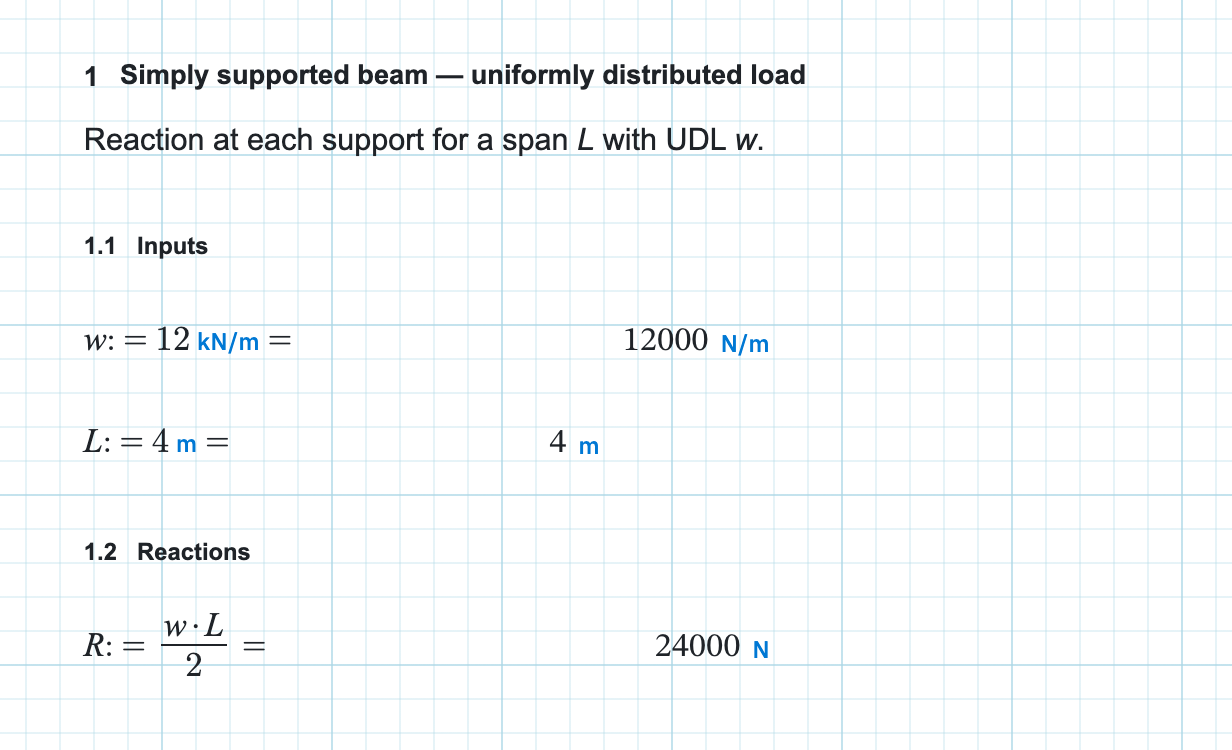
w := 12 kN/m =
Type a colon after the name and Calculeaf turns it into := for you.
You do not need to type both characters. If you then press
=
as well, the extra
equals is ignored, so you do not end up with :==.
Three things are happening in that line:
:=means "let w be". It gives the namewa value.12 kN/mis the value, with its units attached to it.- The
=on the end means "show me the answer".
The answer comes back as 12000 N/m. That is the same quantity you
typed. Calculeaf works in newtons and metres, so it shows you the answer that
way. If you would rather see kN/m on the page, you can
ask for that unit later.
3. Use the value somewhere else
Click an empty spot below the line you just wrote, and add these two:
L := 4 m =
R := w * L / 2 =
R is the reaction at one end of a simply supported beam: the load
times the span, divided by two. You get 24000 N, or 24 kN.
Notice you never told Calculeaf that kN/m times m gives a force. It worked that
out from the units. And if you ask for something that makes no sense, like
3 m + 2 kg, it will not guess. The region says
Incompatible units and waits for you to fix it.
Order on the page matters. A name only works in regions below it, so put
L underneath w, not beside it or above it.
4. Add a note
Double-click empty paper instead of single-clicking, and you get a text region rather than a math one. Use it for a title, an assumption, or a reference to the code you are working to.
Single click for sums, double click for words. That is the whole rule.
5. Save it
If you are signed in, the sheet saves itself as you work. To keep a named copy, press Ctrl+S or use Save As at the top of the window.
If you are not signed in, you will be asked to create an account first. Doing that also keeps the sheet you just wrote.
That is the whole idea. Next, take a tour of the workspace so you know what everything on screen is called. For more on the maths itself, see expressions and units.