Find and replace text
Open Find/Replace on the Text tab when a phrase has to change everywhere it appears in your notes. The client calls the structure a mast instead of a pole. A revision changes the standard you cite. The button finds and replaces text in every text region on this worksheet.
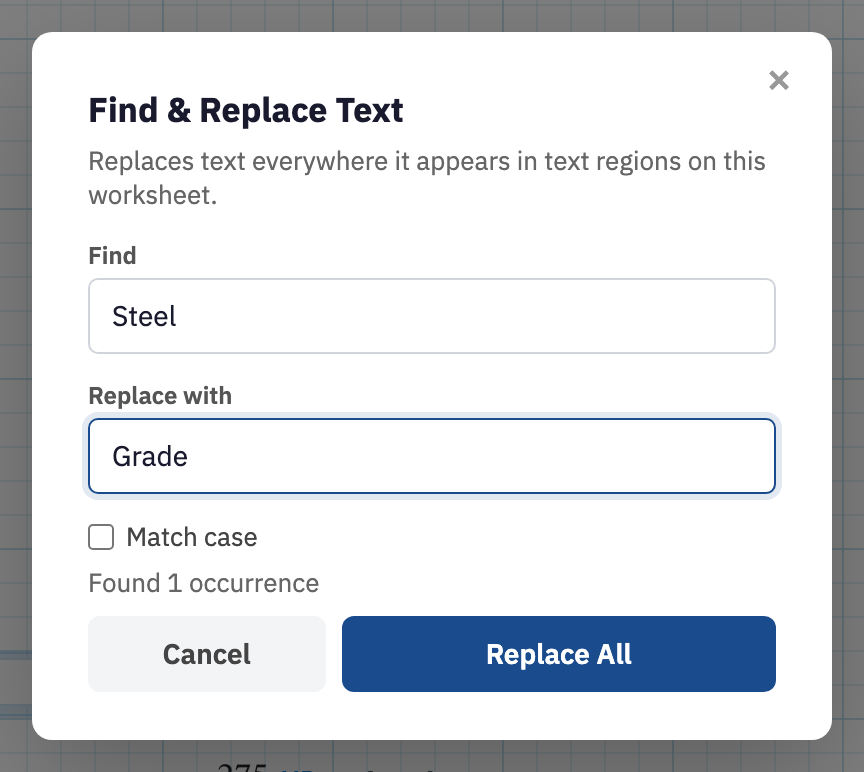
Replace a phrase across the notes
- Open the Text tab and choose Find/Replace. The dialog is titled Find & Replace Text.
- Type the current phrase in Find.
- Type the new phrase in Replace with.
- Tick Match case if the difference between Pole and pole matters.
- Read the count under the fields. It reports how many occurrences it found, or that there are none. Then choose Replace All.
Only the words change. Bold, colour and style survive the replacement untouched, and the whole run goes onto the undo stack as one action.
What counts as text
Headings, body notes, quotes, captions and section titles are all text regions, and so is anything you typed into a header or footer band, so all of them are searched. Math expressions, plot titles set in a plot configuration and list labels are other region types and are left alone.
Renaming a variable is a different command
To turn V_1 into V_applied in every formula, plot
and table, use
Find and replace variables
on the Math Format tab. Running the text search on V_1 will not
touch the math, and renaming a variable will not update the prose that mentions
it. A thorough rename usually means running both.