Summary tables
Insert a summary when the note needs a block that states the answers. The design moments, the utilisations, the governing case, set apart from the workings that produced them. Insert → Summary builds that block: a compact table of labels beside live-linked result cells. Point each result cell at a worksheet name and the value follows the calculation on every evaluate, including any conditional formatting the source math region carries.
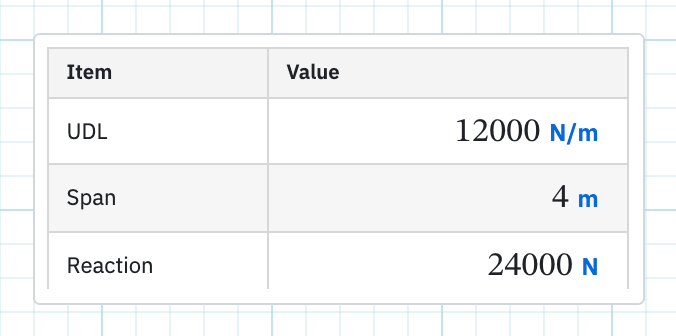
Place a summary
- On the Insert tab, choose Summary, then click the page.
- The toolbar reads Summary table settings while settings are open, and the finished table stays hidden until you close them.
Set up the columns
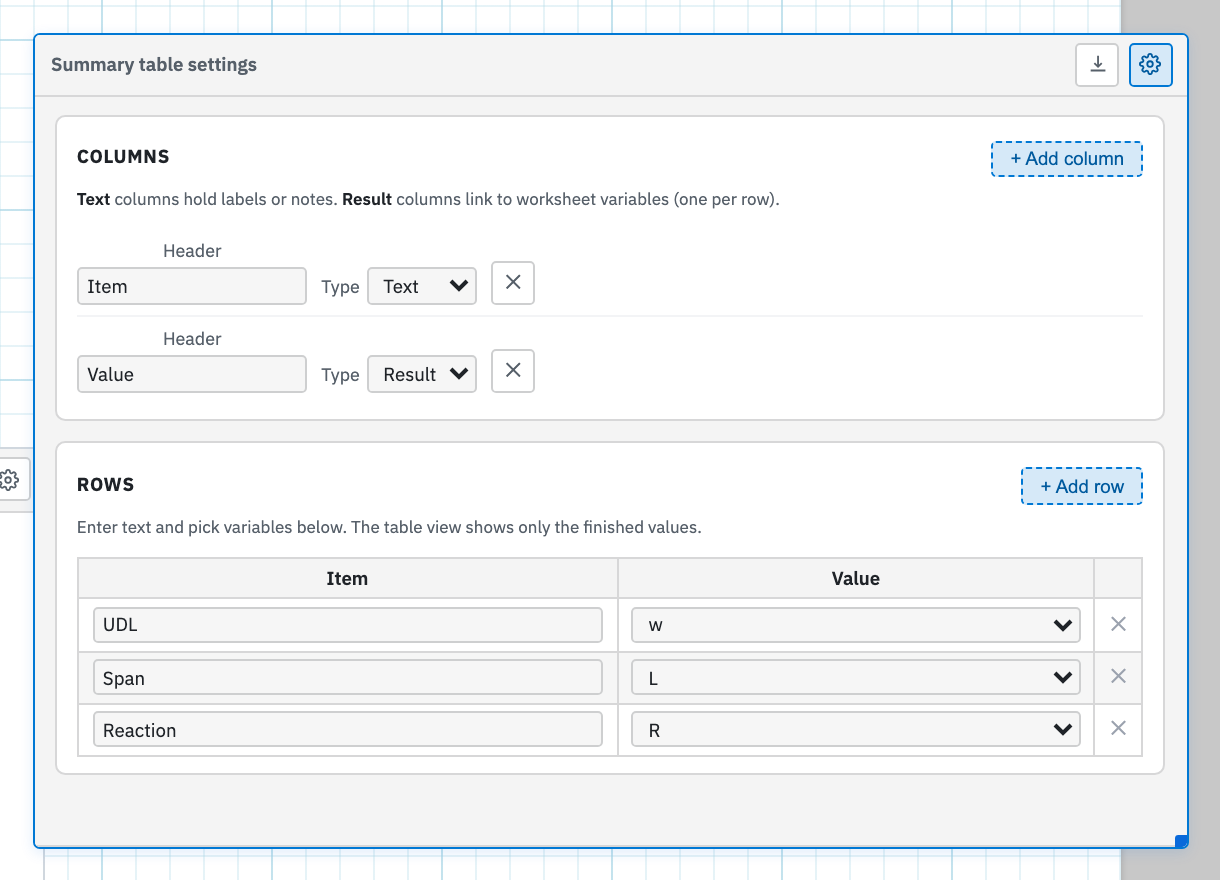
The Columns section carries the hint that decides the layout. Text columns hold labels or notes, and Result columns link to worksheet variables, one per row. Each column has a Header, which becomes its title in the finished table, and a Type set to Text or Result. + Add column appends another. A second Result column for a second load case is the common reason. ✕ removes one, disabled when a single column remains.
Fill the rows
Under Rows the hint is short: enter text and pick variables below, because the table view shows only the finished values.
- + Add row appends a row to the grid.
- Text cells take a label typed straight in, with the placeholder
Text…. - Result cells take a variable from the dropdown. Leaving one empty is fine. The finished cell shows a dash until you pick a name.
- ✕ (Remove row) drops a row, and is disabled when only one row is left.
The gear toggles between Close settings and Table settings, so you can flick back to the finished view to check the wording as you build it.
How values stay current
A Result cell is a live link rather than a copy of a number. Edit the source math region, or change its result format, its decimal places, or its conditional formatting, and the summary picks all of that up on the next evaluate. In the finished table each linked value is also a jump to the math region that defines it, which makes the block a useful index into a long sheet.
Position is free. The summary reads names from the whole sheet after Evaluate All, so unlike a formula it does not have to sit below its sources. Convention still favours the top of the first page or the last page of a printout, where a reviewer expects to find the conclusions.
Export to Excel
The download icon on the toolbar is Export to Excel, and
right-clicking the region offers the same Export to Excel…
command. The workbook is named after the worksheet with a
_summary.xlsx suffix and contains the finished labels and values,
not the settings grid. Where the spreadsheet library cannot be loaded, the
export falls back to a _summary.csv file with the same content.