Input boxes
A finished calculation still has a handful of numbers someone will change next time: a span, a load, a material grade. Convert those assignments to input boxes and the formula stays put. The number sits in a field that looks like a dropdown. Type a new value and every region below updates.
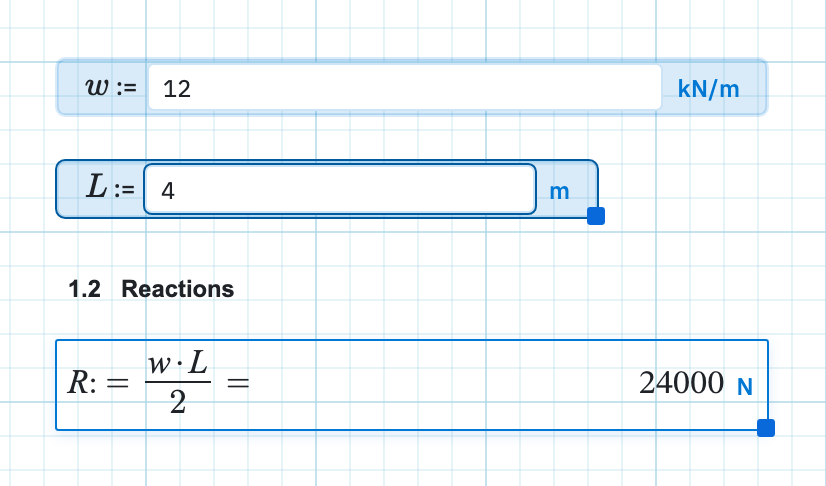
Convert an assignment
- Write a simple numeric assignment, for example
L := 4 m. An optional unit is fine. A trailing=is fine too; the result chip is hidden once the region is a box. - Right-click the region frame and choose Convert to input box.
- The name and
:=stay as a label. The number becomes the field. The unit sits after it.
Select two or more numeric assignments and convert them together. That turns each one into a box and then runs Align input, so the white fields line up. Shorter boxes are stretched to the longest if they would not otherwise overlap.
The assignment has to be a single number with an optional unit, the same rule
as a slider.
w := L / 2 cannot become a box, so put the box on
L instead, or on a numeric input further up the page.
Type a new value
Click the white field and type. Commas are ignored, so 12,000
is twelve thousand. Press Enter or click away and the sheet re-evaluates in
evaluation order. Names that
depend on the box update; anything above it is untouched.
When the sheet is not
format-locked, click the unit
(or the faint “unit” placeholder) to change or add one. That rewrites the
unit string only. It does not convert the number you typed, so
4 m becomes 4 ft rather than 13.123 ft.
Convert back to math
Right-click the box and choose Convert to math. The current number stays in the assignment as ordinary math, so you can explore values in the field, settle on one, and restore the formula before you issue the sheet.
Align a column of boxes
Select two or more input boxes, then right-click and choose
Align input. That lines up the inner white fields by
changing the space after := and after the unit. The outer
frames stay where they are. Converting several assignments at once does
this automatically. Align left, centre, and right still move the
regions themselves, as on any
multi-selection.
Next, dropdown lists when a handful of named cases is a better fit than typing a number, or lock the format so the rest of the page cannot be edited.