Snippets
Select some regions. Save them as a snippet. Later, drag that snippet onto another sheet.
You do not need the source worksheet open. The snippet survives the next thing you copy, and you can search for it by name months later.
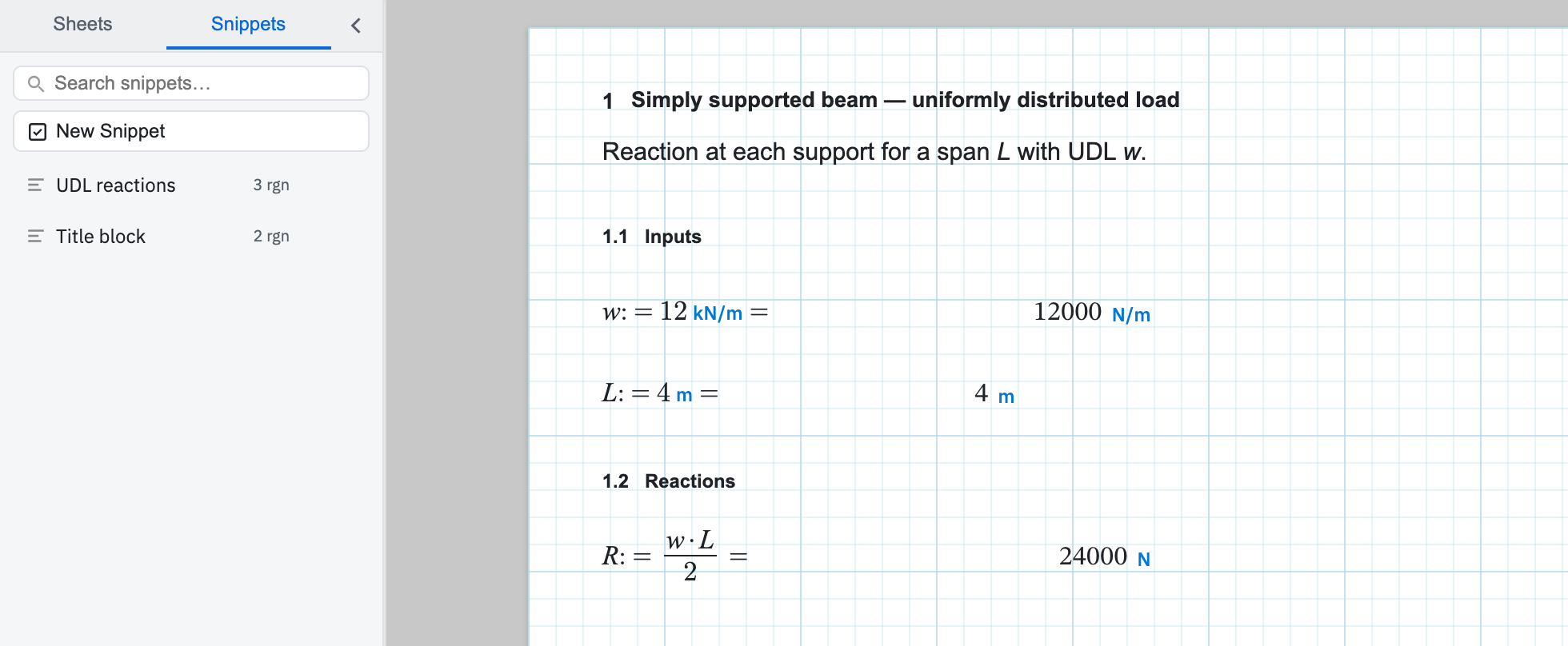
Save a snippet
- Select the regions you want on the canvas — click one, then Ctrl+click each of the others to add them to the selection.
- Open the Snippets tab in the left sidebar.
- Choose New Snippet.
- Give it a name you will recognise later and choose Save Snippet. You have to be signed in; guests are asked to create an account at this point.
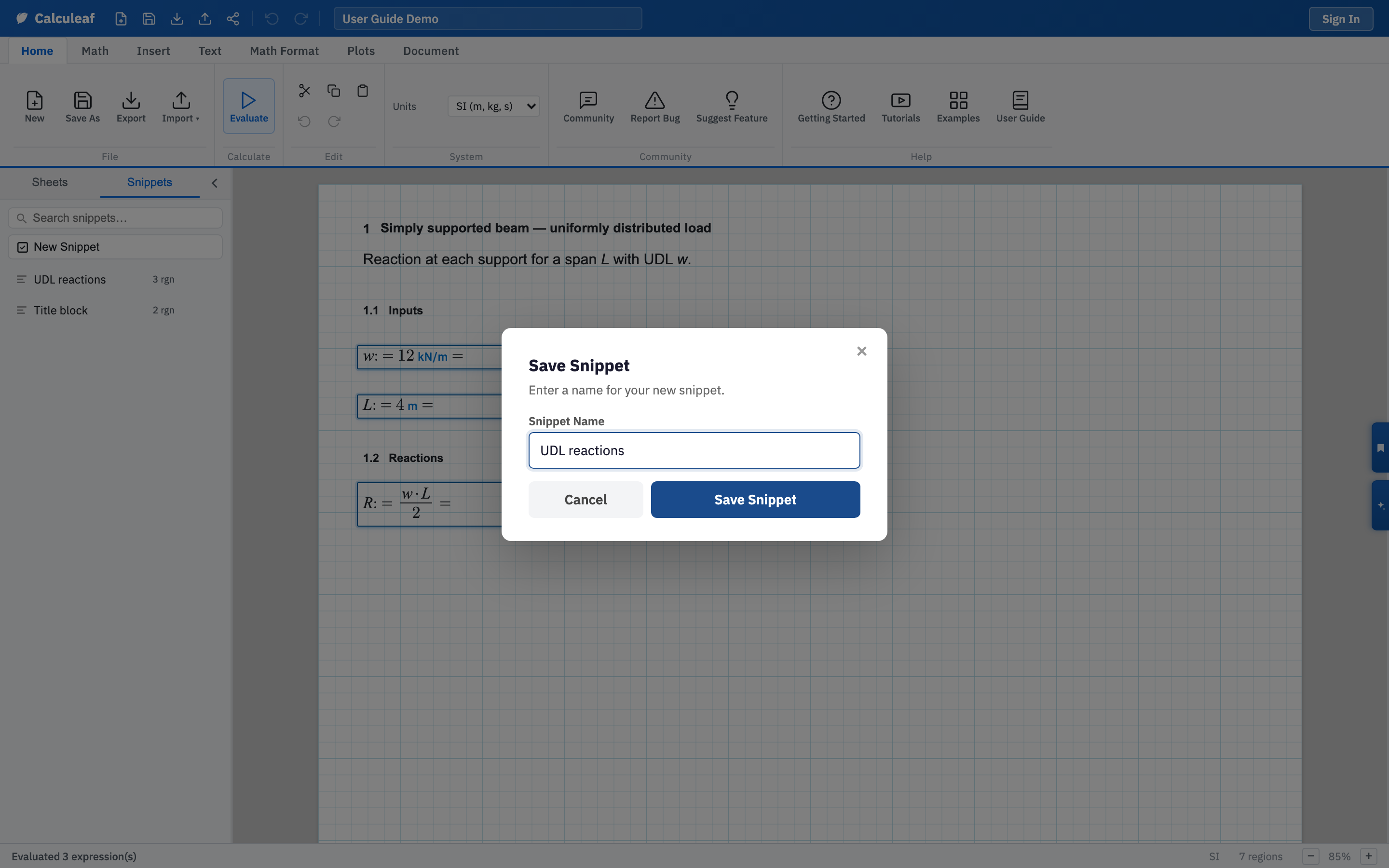
Start with nothing selected and Calculeaf tells you to Select regions first rather than saving an empty block. Before you have saved anything, the list reads No snippets yet — select regions and save.
Drag one onto the sheet
- Open the Snippets tab on the sheet that needs the block.
- Drag the snippet out of the list and over the page.
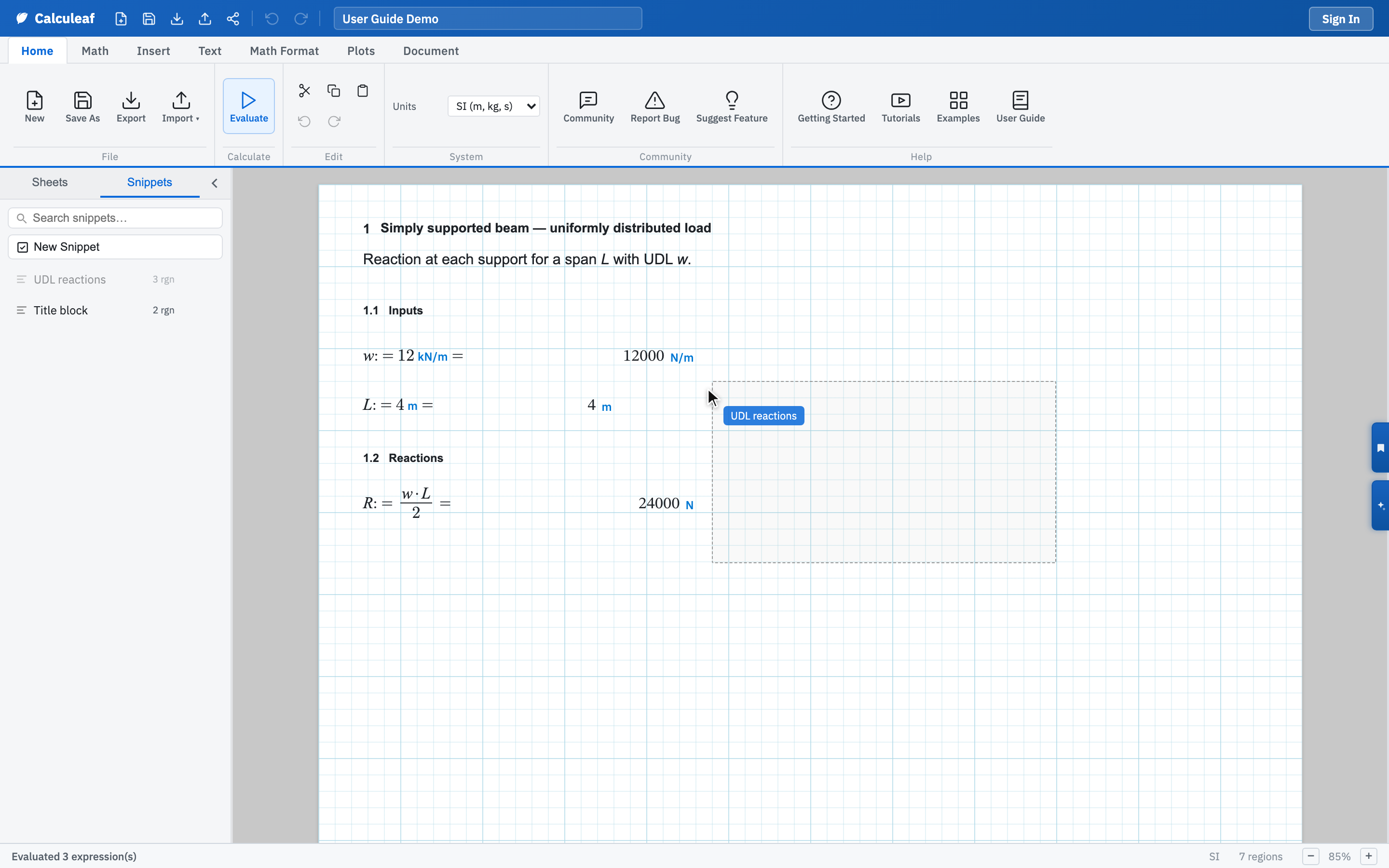
- A chip follows the pointer and a dashed box shows the footprint the block will occupy, so you can see whether it clears your existing work.
- Release to drop it. The regions land at that point, keeping their layout relative to each other and the variable names they had when you saved them.
The names come across unchanged, so check them against what is already on the
sheet. A dropped block that assigns M_max overwrites an existing
M_max for every region below it. Rename the incoming ones, or
move the block clear of your existing work, before you evaluate.
Keep the list usable
Search snippets… filters the list as you type. Signed-in users can add a New Folder and drag snippets into it. Rename a snippet by editing its name in the list, and delete one from its own menu when it is out of date.
For whole-sheet reuse, save a template from the Sheets tab instead: a template when the next job should start from an entire page, a snippet when you only need one block of it. Saving either needs you to be signed in. The selection itself works the same way as it does for cut, copy, and paste.