Given and solve
Build a Given block when you have several equations that have to hold at once
and no clean way to rearrange them. Support reactions from equilibrium, a flow
split, a geometry closure. You state the constraints as you would write them
on paper, name the unknowns, and the solver finds values that satisfy all of
them together. Unlike solve(A, b) on a matrix, the equations do
not have to be linear.
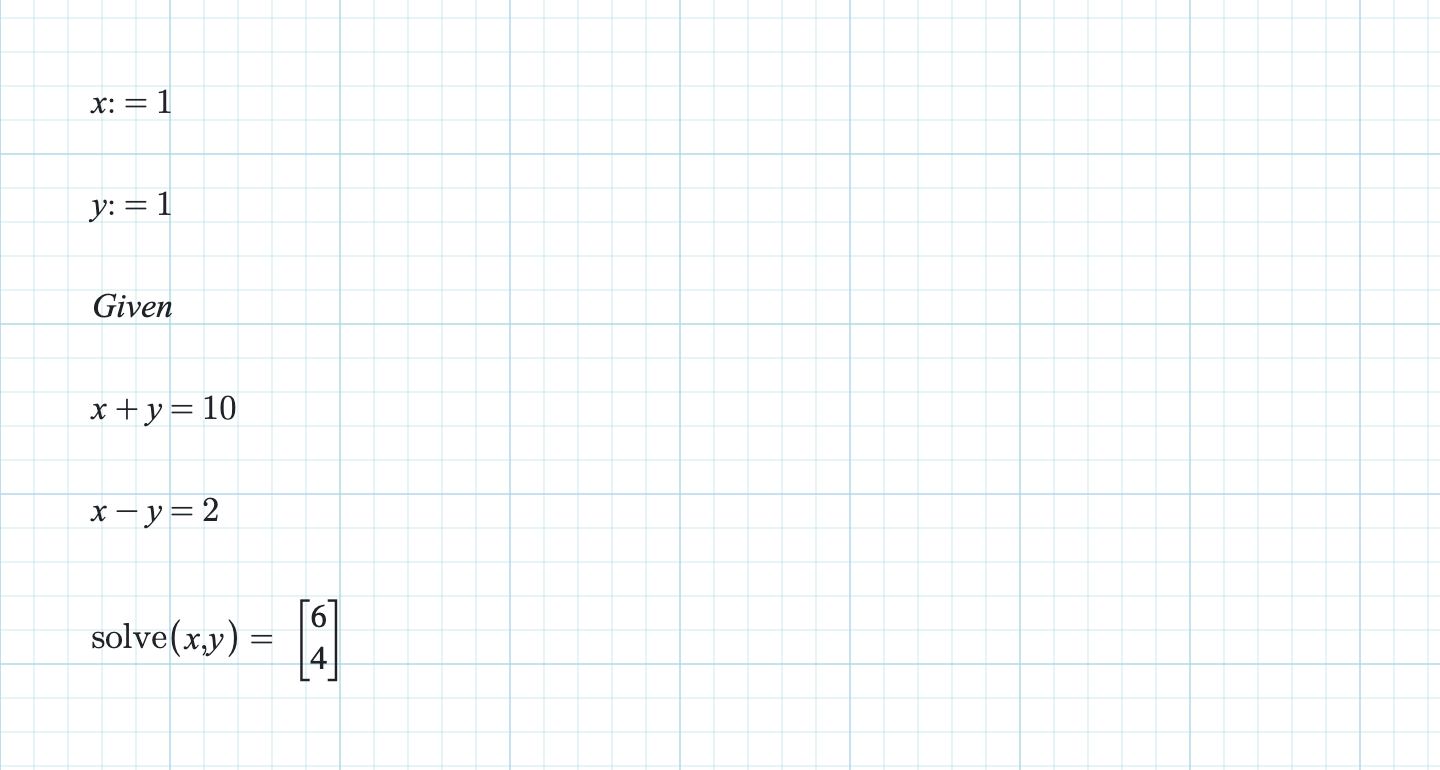
Build the block
- Assign a starting guess to every unknown in regions above the block. This is the step people skip. The guess selects which root you converge on. An omitted guess starts from 0.
- Put Given in a math region of its own. Click it in Math → Solve block, or type
Given. It has to be the only thing in that region. The capitalisation does not matter. - Write one constraint per region below it, using either
=or==between the two sides. A constraint region deliberately shows no answer. That blank is how you know it was captured rather than evaluated. Do not add a trailing show-answer equals to a constraint. - In a later region, insert solve or type
solve(a, b)with the unknown names. They must be bare names, and must number exactly as many as there are constraints. - Evaluate.
solvereturns the solved values as a column, writes each one back into its name for the regions below, and closes the block.
A complete two-equation example
An 8 m simply supported beam carrying a 30 kN point load 3 m from the left support. Vertical equilibrium gives one equation. Moments about the left support give the other:
R1 := 1 kN
R2 := 1 kN
Given
R1 + R2 = 30 kN
R2 * 8 m = 30 kN * 3 m
solve(R1, R2) =
The answer is 18.75 kN and 11.25 kN. Both names now hold those values, so a shear or moment check further down the sheet picks them up without you retyping anything.
On a linear pair like this the guesses barely matter. On anything nonlinear
they decide the answer. Constrain p^2 = 16 after guessing
p := 5 and you get 4. Guess p := -5 and you get −4.
Both are correct roots. The guess is your only way of saying which one you
meant. A guess carrying units also fixes the unit the answer comes back in.
When solve reports an error
- No Given block is open above this
solve, so there is nothing to solve. - No equations defined in this Given block — every constraint needs a top-level
=or==. A region that is an assignment instead is treated as a guess value. - Number of equations must equal number of unknowns, and the message tells you both counts.
- Could not find a solution. The solver did not converge. Move the guesses closer to the answer you expect.
- Arguments must be bare variable names —
solve(x, y)is valid,solve(x + 1)is not, and repeating a name is rejected too.
What is not a Given block
solve(A, b) with a matrix and a vector is ordinary linear algebra
and needs no Given at all. See
Matrices and vectors. Outside a
block, a trailing = on an assignment still means show the answer.
Inside one, a top-level = is a constraint. That is the only place
the meaning of a lone equals changes.