Tour of the workspace
Time to name the parts of the screen. Later pages will say on the Home tab and expect you to know where that is. The Workspace covers the same ground in depth when you need the detail.
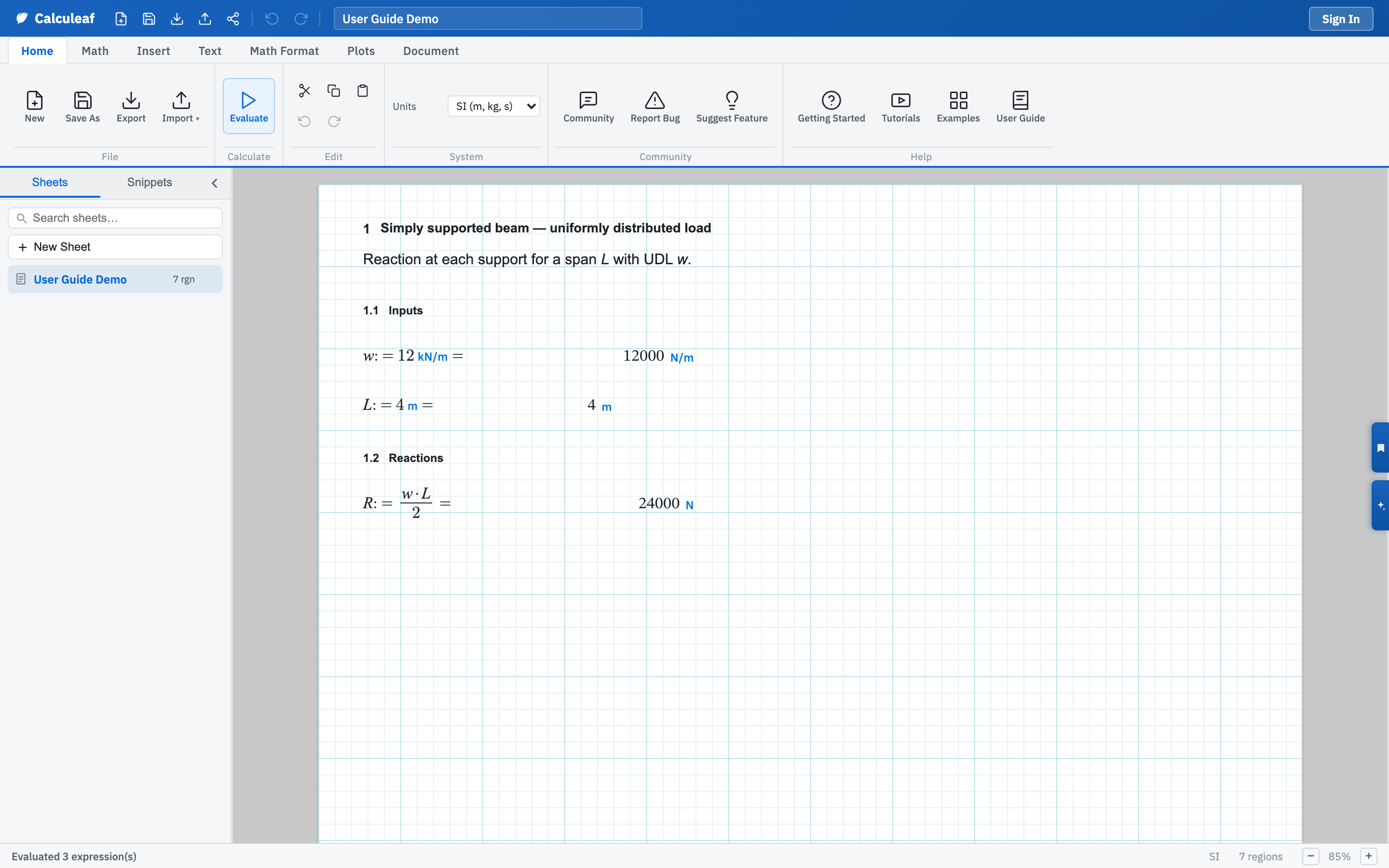
Quick Access bar and ribbon
The narrow strip at the very top is Quick Access: New, Save
As, Export .leaf, Import, Share, then Undo and Redo after a
divider. The worksheet name sits in the middle. Click it and type to rename
the sheet. Sidebar rows open or delete a sheet; they do not rename it.
Sign In, or your initials once you are signed in, sits at
the right.
Below that, the ribbon groups every command onto tabs. Switching tabs changes nothing about the sheet. Click through them once so you know what lives where.
| Tab | What lives there |
|---|---|
| Home | File (New, Save As, Export, Import), Evaluate, clipboard and undo, the unit system, user settings, Community, and Help. |
| Math | Algebra and comparison operators, matrices and vectors, functions, constants, units, Greek symbols, and Given/solve blocks. |
| Insert | Math, Text, List, Sweep, Summary, Line (a separator rule), Picture, 2D Frame, and 3D Frame. |
| Text | Fonts, paragraphs, styles, numbered section headings, and find and replace. |
| Math Format | Result format, decimals, thresholds, calc numbers, and variable find and replace. |
| Plots | Line, area, scatter, and bar charts, polar plots, and 3D surfaces. |
| Document | Paper theme, grid, format lock, zoom, two-page view, margins, print, and headers and footers. |
| Review | Reviewer, Markup, and Decision. Hidden until you own the sheet or are its reviewer, and you are on a team. |
The Help group on Home is the one to remember: Community, the in-app Getting Started tour, video Tutorials, Examples, and User Guide, which opens these pages.
Canvas
The canvas is the page itself. Regions sit at a position and size you control. Click one to select it. Drag its body to move it. Drag a handle to resize. Positions snap to the grid.
Click empty paper once and you get a new math region, or you deselect if something was already selected. Double-click empty paper and you get a text region. Scroll vertically to move between pages. Zoom lives on the Document tab and in the status bar, from 25% to 200%. It changes only what you see, not the printed page.
Sheets sidebar
The left sidebar has three tabs: Sheets, Snippets, and, if you belong to one, Team. Sheets lists your worksheets and folders, with a collapsible Templates block underneath for signed-in users. The star on a template makes it the one offered first when you create a new sheet.
Two more panels live on the right-hand edge for later: Sections, for jumping between numbered headings, and AI, for creating, editing, or reviewing a sheet from a prompt.
Unit system and status bar
Every worksheet has a unit system: SI,
USCS, or CGS. Set it from
Units on the Home ribbon. It governs how answers are
displayed, not the numbers you typed. A length entered as 4 m
stays four metres. A USCS sheet shows you the equivalent in feet. The
status bar along the bottom repeats the current unit system, counts the regions
on the sheet, holds a padlock for
format lock, and holds two-page
view next to the zoom controls.
That is enough of the map. Next, open an example calculation, or branch off into the detail: ribbon tabs, canvas, zoom, and grid, and sheets and folders.