Creating a team
You can only assign a reviewer to someone who is already a member. Open the Team tab in the left sidebar to start one. With no team yet, the panel offers a single action and explains what you get — colleagues who can see each other's sheets and assign reviewers.
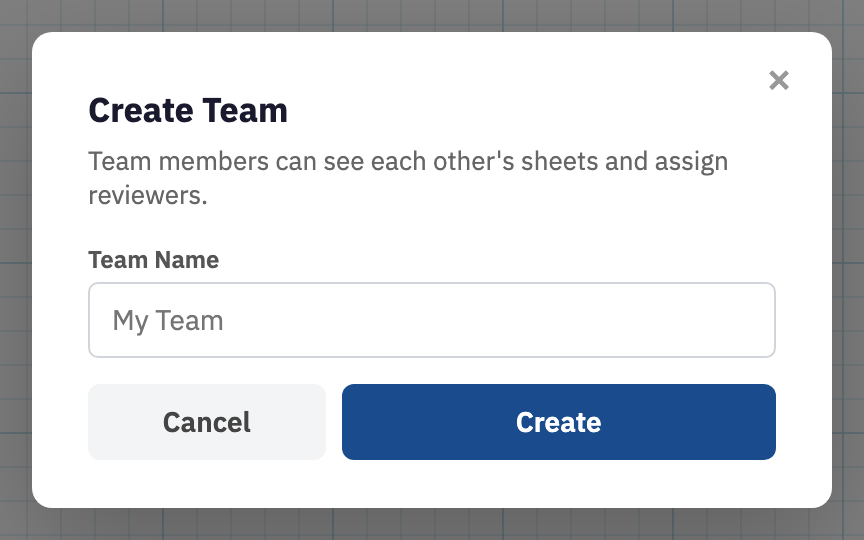
Create the team
- Sign in and open the Team tab in the left sidebar.
- Choose Create Team.
- In the Create Team dialog, enter a Team Name. Use something a colleague will recognise from an email invitation, such as the office or the discipline.
- Choose Create. You are the owner, and the team name replaces the empty state at the top of the panel.
As owner you can rename the team later in Account settings, where a Team section holds the Team Name field and a Save Team Name button.
Invite colleagues
Choose Invite next to the team name to open the Invite a teammate dialog, enter an email address, and send it. They get an email with a join link, and a signup link too if they have no Calculeaf account yet. Each person belongs to one team at a time, so an invitation to someone already on another team is refused.
Once a colleague accepts, their sheets appear in your team list and yours in theirs. That visibility is read-only. Teammates can open each other's worksheets and see who created and last edited each one, but only the owner edits a sheet.
Filtering the team sheet list
| Filter | Shows |
|---|---|
| All | Every sheet owned by anyone on the team. |
| Mine | Only the sheets you own. |
| Reviewing | Sheets assigned to you that still await your decision. Once you decide, they drop off. |
| Changes | Your own sheets that a reviewer has sent back. |
With colleagues on board, move on to the review workflow. A team needs a signed-in account on both sides. A share link opens an editable copy and carries no review state. Use it to hand someone the calculation, not to have it checked.