Sheets and folders
Open the left sidebar. Your sheets live on the Sheets tab.
The header also has Snippets and Team. Click one to swap the panel below. Collapse the whole sidebar with the chevron in that header when you want the width for the page, and bring it back from the tab on the left edge. Drag its right border to resize it. The width is remembered in this browser.
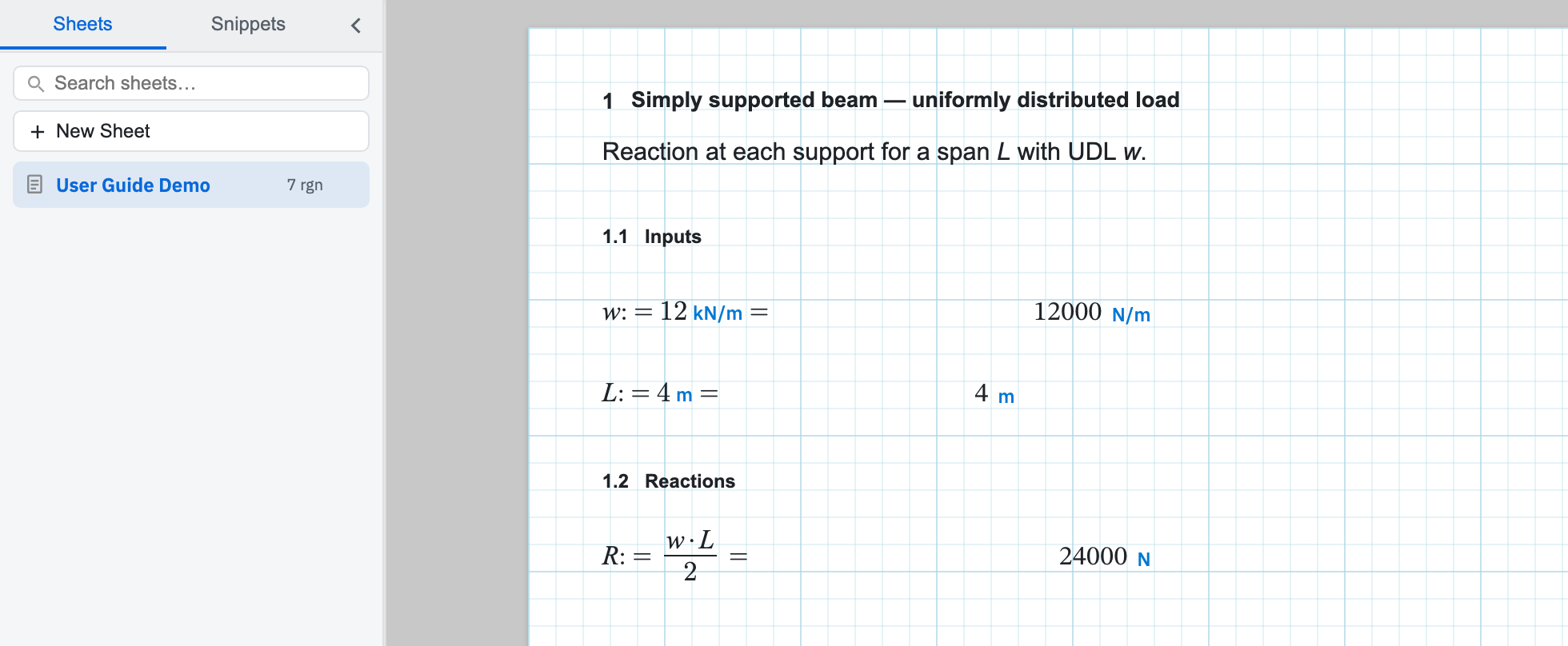
Open and search
Click a name to open that sheet. The current one is highlighted. Each row
ends with a region count such as 5 rgn, which is a quick way to
tell a real calculation from a scratch pad. Type in
Search sheets… to filter the list.
To rename a sheet, click its name in the bar at the top of the window and type a new one. There is no rename option in the sidebar. A sheet row only opens or deletes. Folders and snippets do have rename buttons on the row. Guest sheets are visible in this browser only until you sign in and claim them.
Start a new sheet
New Sheet in the sidebar does the same job as New on the Home tab and on Quick Access. It opens a dialog where you name the sheet and, optionally, start it from a template instead of a blank page. Signed-in users can star a template so the dialog offers it first next time.
Group sheets into folders
New Folder appears once you are signed in. Create a folder, then drag sheets into it. Folders only tidy your own list. They have no effect on how a sheet evaluates or on who can see it.
Templates
At the bottom of the Sheets tab, Templates expands to show the sheets you saved with Save As → Save as Template. You can search that list, open a template to edit it, or star one as the preferred starting point for new sheets. Templates need an account. Guests do not see this block at all.
Team tab
Belonging to a team adds a Team tab next to Snippets. It lists your teammates' sheets, view-only, with filters for All, Mine, Reviewing, and Changes so you can find the ones waiting on you. Creating a team and the review workflow itself come later in the guide.