Result formats
Select a math region that already shows an answer. Then pick how that number is written: 24500, 2.45 × 10⁴, or 24.5 × 10³. Format only changes the display. The stored value stays the same.

Change the format
- Select one or more math regions that already show an answer. That means ones whose expression ends in a trailing
=. Several regions selected together all take the new setting. - Open the Math Format tab.
- In Results, open Format and choose one of the five entries below. The sheet re-evaluates and the chips redraw.
A new math region starts at Auto, and copying a region brings its format along.
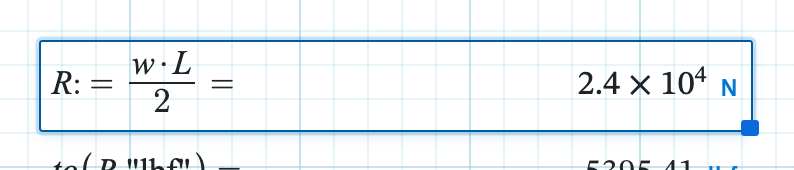
Choosing between the five
| Format | Reach for it when | Example at Decimals 2 |
|---|---|---|
| Auto | You want a compact form and do not care much. Whole numbers stay whole. Magnitudes past Exp thresh. (default 6, meaning 10⁶ or 10⁻⁶) switch to a scientific-style display on their own. | 24500 → 24500, but 2400000 → 2.4 × 10⁶ |
| Decimal | A column of answers should line up at a fixed number of places. Fixed-point, using Decimals (0–15, default 2). Trailing 0s decides whether those places are padded. | 8.4375 → 8.44 |
| Scientific | Magnitude matters more than the digits: moduli, tolerances, anything spanning several orders. One digit before the point, then a power of ten, with Decimals applying to the significand. | 24500 → 2.45 × 10⁴ |
| Engineering | You read the exponent as a unit prefix. Powers move in steps of three, so 10³ reads as k, 10⁶ as M, 10⁻³ as m, 10⁻⁶ as µ. Handy alongside a preferred unit. | 24500 → 24.5 × 10³ |
| Fraction | The number is really an imperial dimension or a simple ratio. Calculeaf writes a rational approximation of the magnitude, and the unit still appears on the chip. | 0.375 → 3/8 |
What Format does not touch
Format never changes the stored quantity, the worksheet
unit system, or any downstream math.
R * 2 still uses the same R whether you display
R as 24 kN or 2.40 × 10¹ kN.
Next, decimal places for how many digits to show, and what Zero tol. and Exp thresh. do.