Lock format
Lock the format when the calculation is finished and you only want the inputs to move. Formulas, notes, plots, and layout stay as they are. The values in input boxes, sliders, and dropdown lists can still change, and the sheet still evaluates.
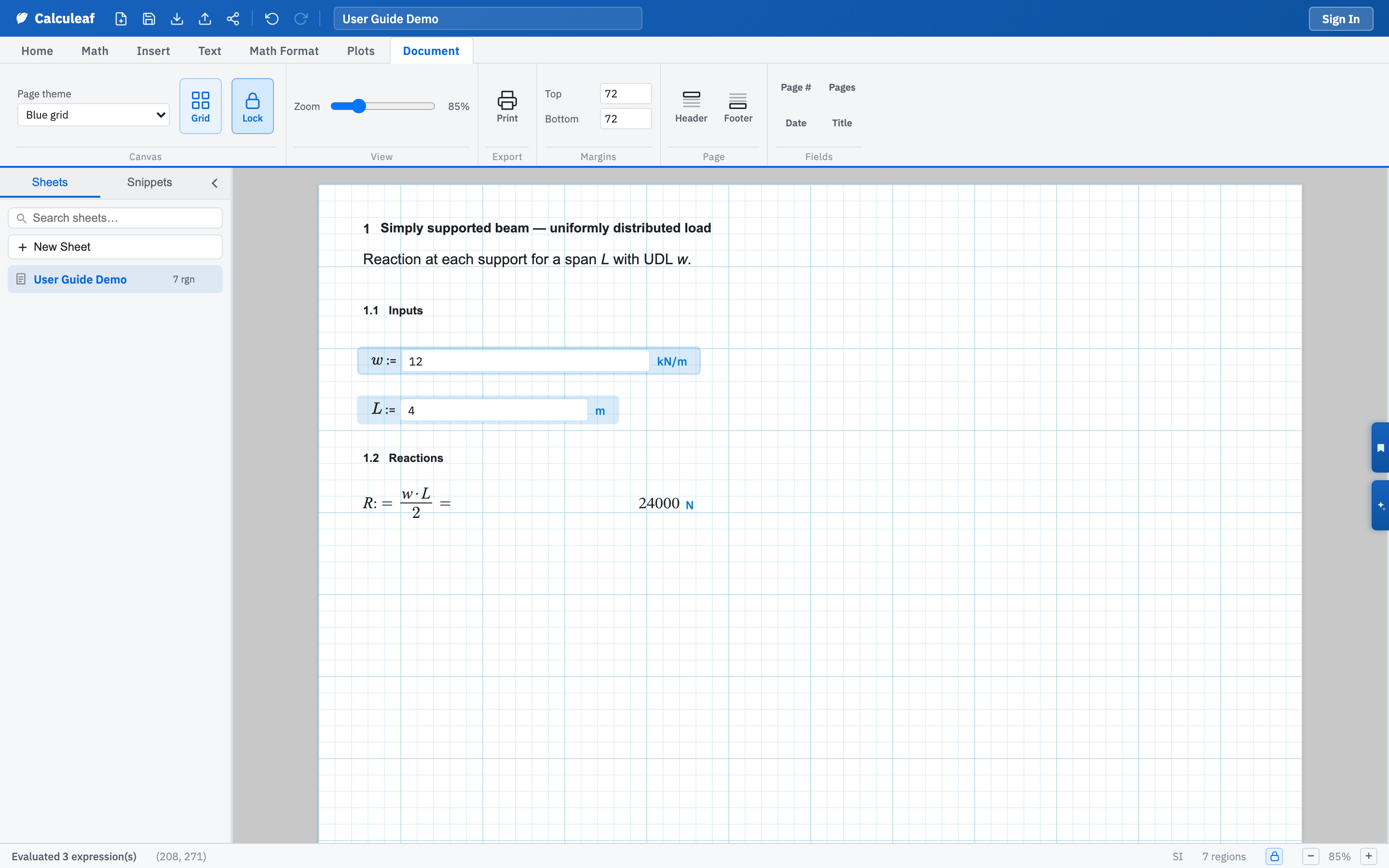
Turn it on
- Open the Document tab.
- In the Canvas group, choose Lock. The button stays highlighted while the sheet is locked.
The padlock on the right of the status bar does the same job. Hover it and
it names the action: lock, or unlock once it is on. The setting is stored on
the worksheet, so it survives a reload and travels with a
share copy, a
template, and a
.leaf export.
What you can still do
- Type a number in an input box.
- Drag a slider.
- Change a dropdown list selection.
- Evaluate, print, save, zoom, and switch paper theme or grid.
Insert, Plots, and Math ribbon buttons dim. You cannot add, delete, move, or resize regions, edit a formula or a text note, convert a box back to math, add or remove a slider, or change the unit on an input box. Right-clicking empty paper offers only Format is locked. Clicking a locked control reports the same in the status bar.
Turn it off
Choose Lock again, or the status-bar padlock. Anyone who can edit that copy can unlock it. Locking is a layout lock, not a password: it stops accidental edits while someone fills in values. A colleague who opens your share gets their own copy, still locked, and can unlock that copy if they need to change the working.
Grid and zoom live in the same part of the Document tab. How a region lands on the page is under canvas, zoom, and grid.